> ## Documentation Index
> Fetch the complete documentation index at: https://docs.pranthora.com/llms.txt
> Use this file to discover all available pages before exploring further.
# Files
> Enable your assistant to perform question answering using uploaded files.
## 🧩 Overview
Assistants can reference uploaded files to answer questions, summarize content, or provide context-aware responses. You can upload documents like PDFs, text files, or notes, and then connect them to your assistant’s model.
***
## 1️⃣ Upload Files
There are two simple ways to upload files:
1. **From the Assistant Model Section**
* Open your assistant in the [Agents](https://app.pranthora.firstpeak.ai/agents).
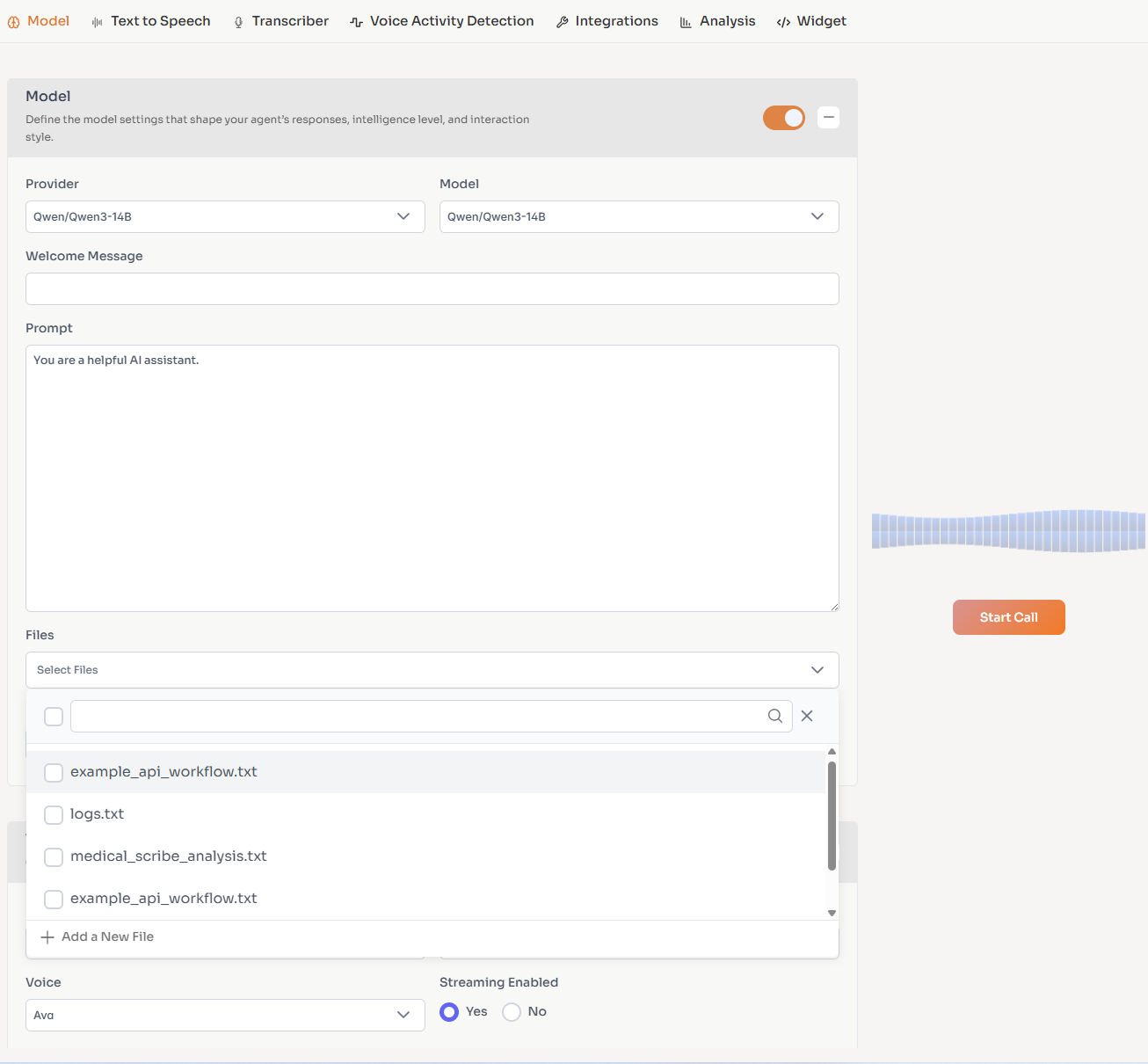
* Under the **Model** tab, find the **Files** section.
* Click **Add Files** and upload your documents.
2. **From the Files Page**
* Go to [files](https://app.pranthora.firstpeak.ai/files) tab.
* Upload your files here directly.
After uploading, return to your assistant’s **Model section** and select the desired file(s) from the dropdown list.
***
## 🖼️ Interface
Below is where files can be uploaded and linked to your assistant:
 ***
## 💡 Tips
* Keep file names descriptive for easy selection later.
* You can attach multiple files to a single assistant.
* Files may take a few moments to process.
***
***
## 💡 Tips
* Keep file names descriptive for easy selection later.
* You can attach multiple files to a single assistant.
* Files may take a few moments to process.
***