> ## Documentation Index
> Fetch the complete documentation index at: https://docs.pranthora.com/llms.txt
> Use this file to discover all available pages before exploring further.
# MCP Integrations
> Connect and manage MCP integrations for your agents and workflows.
MCP (Model Context Protocol) integrations allow your agents and workflows to connect with powerful external tools and data sources in a standardized, secure way.
You can read more about MCP and its protocol at [Model Context Protocol Documentation](https://modelcontextprotocol.io/).
***
## ⚙️ Connecting MCP Integrations
From the **Integrations Library**, you can easily connect to one or more MCP servers.
1. Go to the **Integrations** page in the dashboard.
2. Select the **MCP** tab.
3. From the **Integrations Library**, click **Connect** on your desired MCP provider (for example, Gmail, Zendesk, or Trello).
4. A new tab will open prompting you to **sign in** and authorize the integration.
5. Once authorization is complete, you’ll return to the dashboard, and your **MCP server** will appear under **Active Integrations**.
***
## 🧩 Using MCP Integrations
Once connected, MCP integrations can be attached to:
* **Assistants** → to perform real-time actions like sending emails, fetching calendar events, or updating CRM data.
* **Workflows** → to automate multi-step tasks using contextual understanding and tool invocation.
You can explore available tools under each MCP integration by expanding the integration card.
> 💡 **Tip:** Each MCP integration can host multiple tools, so you can perform several actions within the same connected provider.
***
## 🧰 Adding a Custom MCP Integration
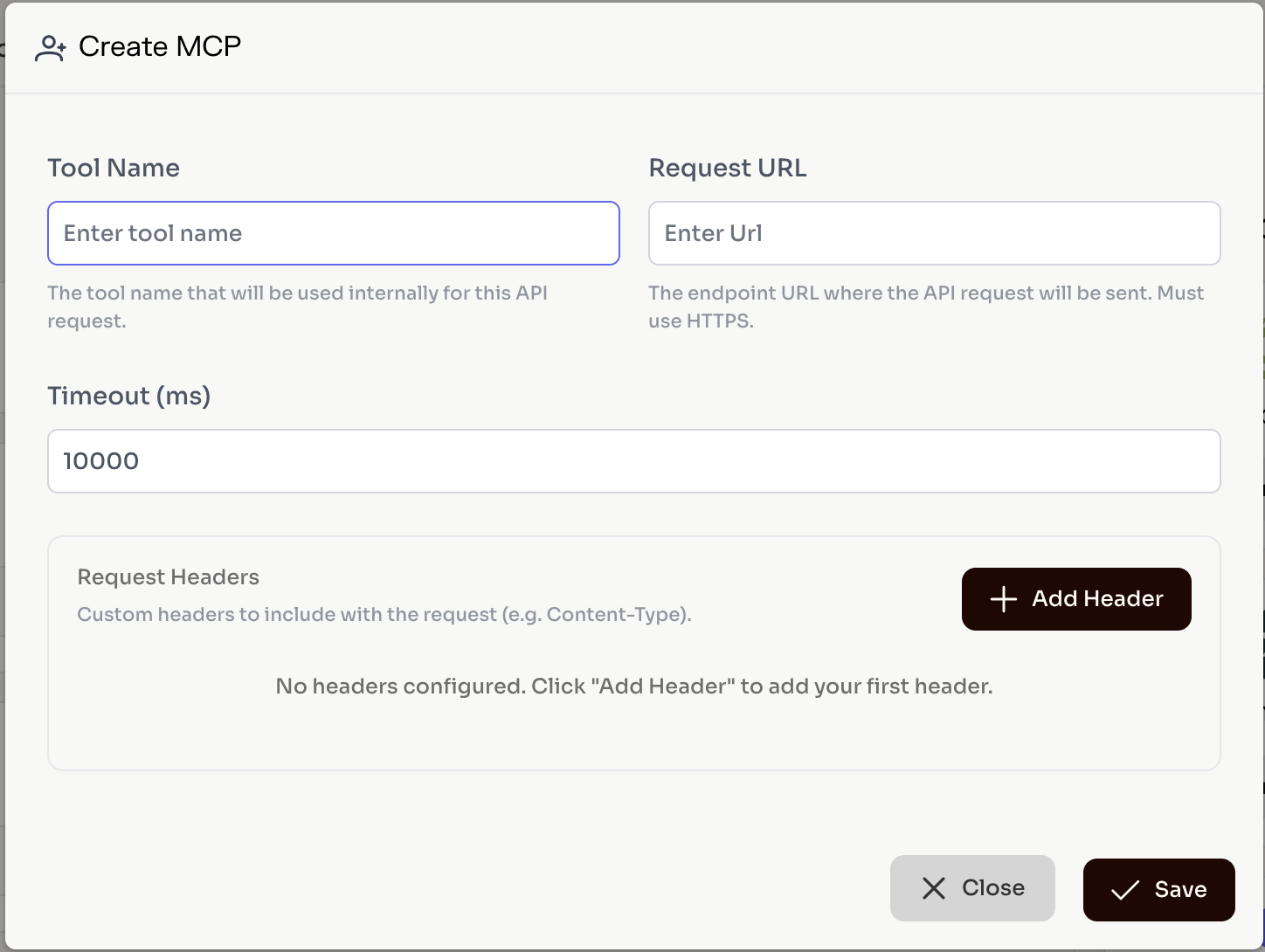
If your desired MCP provider is not available in the pre-listed options, you can easily add it as a **Custom MCP Integration**.
1. Click **Add Custom MCP** in the MCP integrations tab.
2. Provide the following details:
* **MCP Server URL**
* **Headers (optional)** — key-value pairs for authentication or custom metadata
* **Timeout (in seconds)** — to control the connection duration
3. Once configured, the system will automatically **connect to the MCP server**, **fetch the schema**, and add it to your **Active Integrations**.
You can then use this integration like any other provider — attach it to assistants or workflows and start utilizing its tools immediately.
 ***
## 🔒 Authorization and Security
* MCP integrations use OAuth-based authentication where available.
* Credentials are securely stored and never exposed in plaintext.
* You can disconnect or revoke access at any time from the integration dashboard.
***
***
## 🔒 Authorization and Security
* MCP integrations use OAuth-based authentication where available.
* Credentials are securely stored and never exposed in plaintext.
* You can disconnect or revoke access at any time from the integration dashboard.
***