> ## Documentation Index
> Fetch the complete documentation index at: https://docs.pranthora.com/llms.txt
> Use this file to discover all available pages before exploring further.
# Testing
> Test your voice workflows using web call or chat before going live.
# Voice Workflow Testing
Before deploying your **voice workflow** for production calls, you can test it using the built-in tools to ensure everything works as expected. 🧪
There are two primary testing options:
* **Web Call** — tests the full speech pipeline.
* **Chat** — tests the workflow in text-only mode.
***
## 📞 Web Call Testing
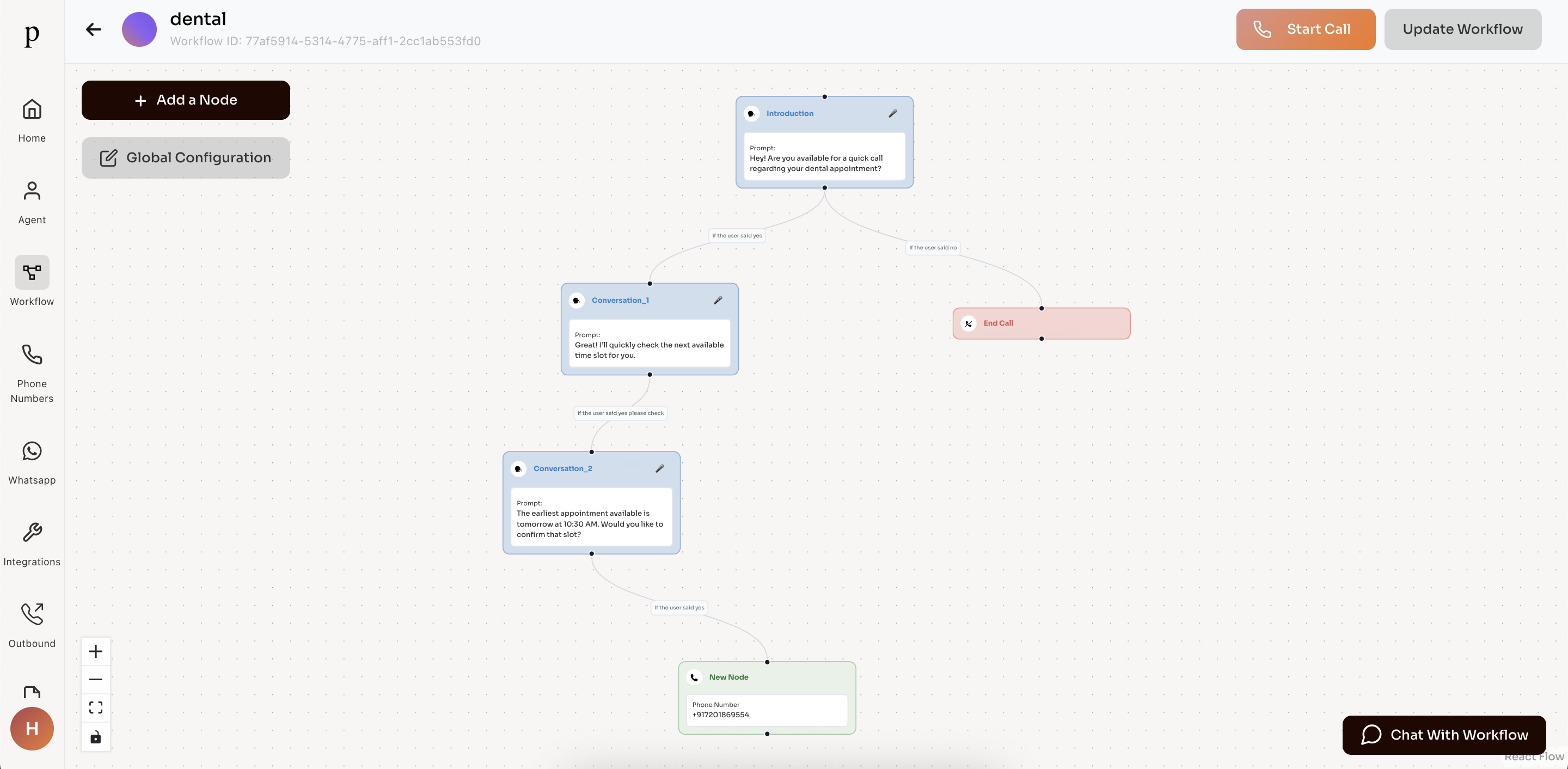
* In the **Workflow Configuration** screen, look to the **right side** for the **Start Call** button.
* ⚠️ **Important:** Make sure to **Save** the workflow configuration before starting the call to apply the latest changes.
* Click **Start Call** and begin speaking. The workflow will process your input through the configured nodes, transitions, and full speech pipeline.
***
## 💬 Chat Testing
* The **Chat** option is located at the **bottom-right** of the workflow screen.
* Executes the same workflow pipeline but in **text-only mode**.
* Your messages appear in the chat window, and the workflow responses are displayed as text.
 ***
## 💡 Tips
* Always save the latest workflow configuration before testing.
* Use **Web Call** to simulate real voice interactions.
* Use **Chat** for quick iterations or debugging prompt/logic changes.
***
***
## 💡 Tips
* Always save the latest workflow configuration before testing.
* Use **Web Call** to simulate real voice interactions.
* Use **Chat** for quick iterations or debugging prompt/logic changes.
***