
Testing
Before deploying your assistant to handle real production calls, you can quickly test it within the Pranthora dashboard. 🧪 Two primary testing options are available:- Web Call — for testing full voice conversations.
- Chat — for testing text-only interactions.
📞 Web Call Testing
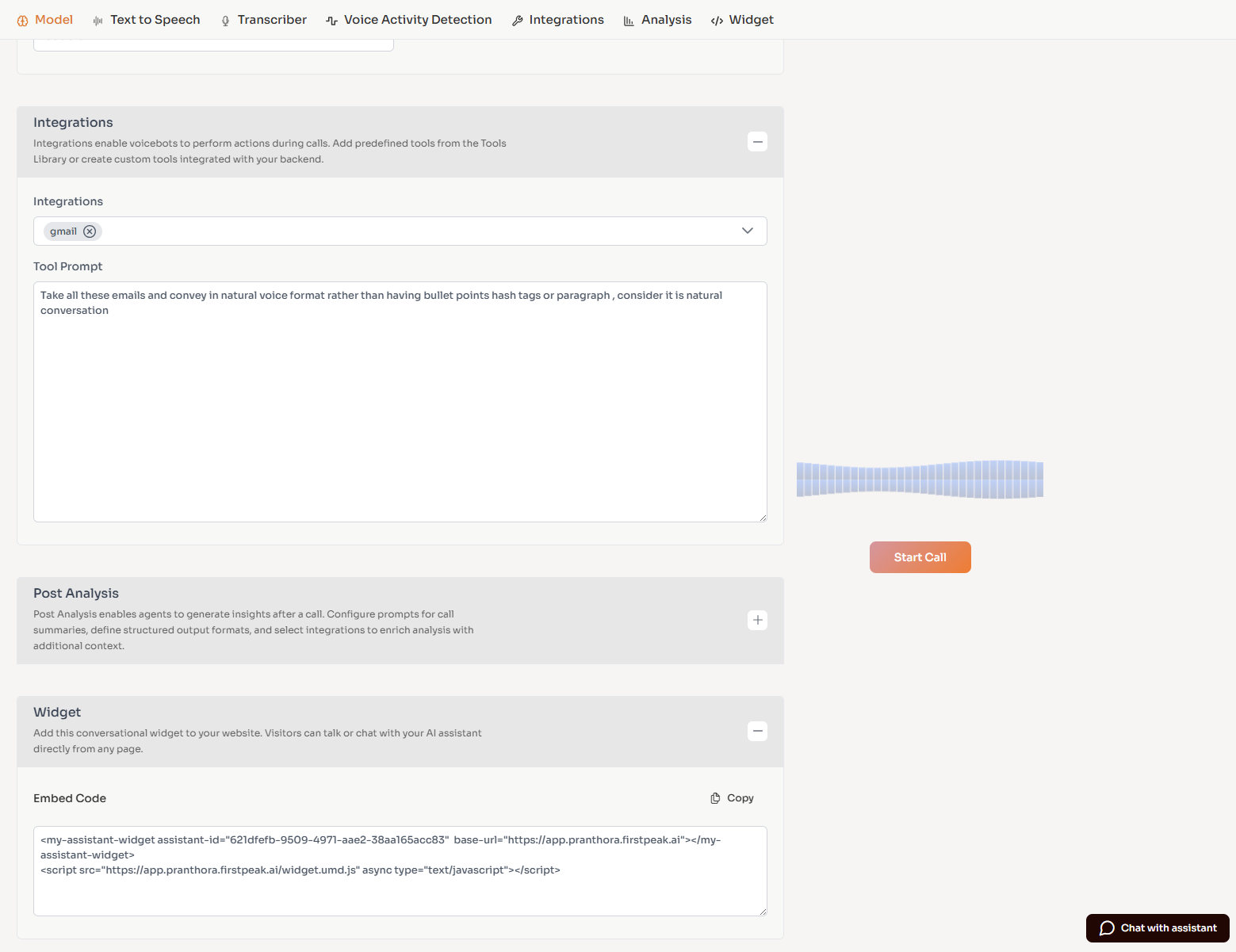
The Web Call feature allows you to test your agent’s full speech pipeline — including transcription, model response, and text-to-speech.- In the Configure Agent screen, look to the right side of the interface.
- You’ll see the Start Call button.
⚠️ Important: Before clicking Start Call, make sure to Save your configuration so that the latest updates are applied.Once saved, click Start Call — you can begin speaking, and your agent will respond in real time using its configured voice and logic.
💬 Chat Testing
If you prefer to test your assistant’s logic without using voice, use the Chat option available in the bottom-right corner of the same screen.- The chat executes the same underlying pipeline (transcription, model reasoning, and response generation) — but operates purely in text form.
- Your inputs appear as text, and the agent’s responses will be displayed directly in the chat window.
💡 Tips
- Always verify that the latest configuration is saved before initiating any test.
- Use Web Call to experience the real-time voice behavior.
- Use Chat for faster iteration and debugging of prompt or logic changes.